 Control Laboral App
 · Windows + Web
How to review employee computer activity with useful context
Computer activity can help you ask better questions about a working day. It cannot determine how well someone performed their job. This guide explains a review process for the Windows application and inactivity information available in Control Laboral App. The goal is to investigate meaningful differences and agree improvements, rather than turn a single percentage into a verdict.
By Control Laboral App · Updated
EUR 4 per employee per month, excluding applicable taxes. 14-day trial without a card.
Email us in English and receive a reply in English. The current application interface is Spanish.
Agree the purpose before reviewing activity
Explain what will be recorded, who will review it and how employees can add context. Select a review period that includes normal work instead of an isolated difficult day. Write down the role’s expected tasks and the relevant applications. Reading, training, calls and meetings may all be productive without continuous keyboard or mouse interaction.
Understand how the indicator is calculated
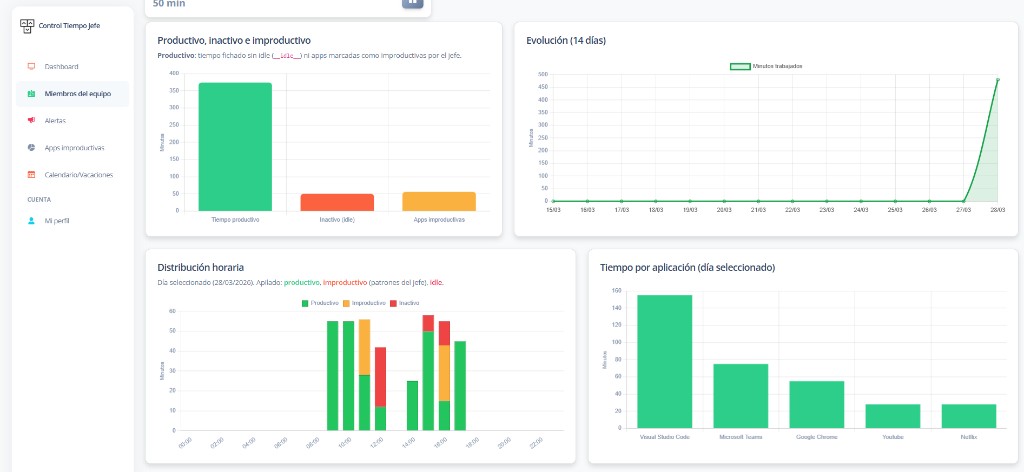
The available productive-time indicator subtracts inactivity and time in applications classified as unproductive from recorded working time. As a fictional example, eight recorded hours minus one inactive hour and half an hour in such applications leaves six and a half hours, or 81.25%. That arithmetic describes a classification of computer activity; it does not prove that 81.25% of valuable work was completed.
Check classifications against the employee’s role
An application may serve different purposes in different jobs. A browser may support customer research, while a communications tool may host a scheduled customer call. Review the application classification and the employee’s explanation before drawing conclusions. Compare similar periods for the same role, and record agreed actions in your management process rather than assuming every difference reflects a problem.
Run a practical, transparent review
First check recorded hours, then application usage and inactivity. Ask about the periods that matter, compare that explanation with scheduled work and agree one concrete follow-up. Revisit the same question after a reasonable interval. Control Laboral App supplies the Windows activity information and manager dashboard; it does not automatically assess work quality, customer outcomes or billable project progress. Its current interface is currently Spanish; email support is available in English.
What is slowing your team down?
Choose the problem you observe. Each guide explains what to check, which result to compare and when Windows activity data can help.
Frequently asked questions
- Does inactivity mean an employee was not working?
- No. Inactivity indicates a lack of computer interaction under the tool’s measurement. Meetings, calls and offline reading can explain it. Discuss relevant periods and compare them with the employee’s responsibilities.
- Can I rank employees by their activity percentage?
- A percentage alone is a weak basis for comparing different roles. Use consistent classifications, comparable work and context. The indicator does not establish quality, effort or the value of an employee’s results.
- Is this a project profitability report?
- No. The current service does not allocate time to projects or customers, store project billing rates or calculate margins. Application activity and project economics answer different questions.
Explore related needs
Tell us what your team needs to manage
The button opens an email draft. Include your country, team size and work devices so we can assess the fit and setup terms.
Discuss your setup