 Control Laboral App
 · Windows + Web
Employee idle time tracking with the context behind the working day
An open time record shows recorded working hours, but a manager may still need to understand the gaps in computer interaction. Control Laboral App brings working-time records, application activity and inactivity received from a Windows client into a web dashboard. Review a person and a period before discussing what happened with the team. Inactivity describes an absence of computer interaction; a call, a meeting or work away from the screen can explain that time.
EUR 4 per employee per month, excluding applicable taxes. 14-day trial without a card.
Email us in English and receive a reply in English. The current application interface is Spanish.
What you can review with employee idle time tracking
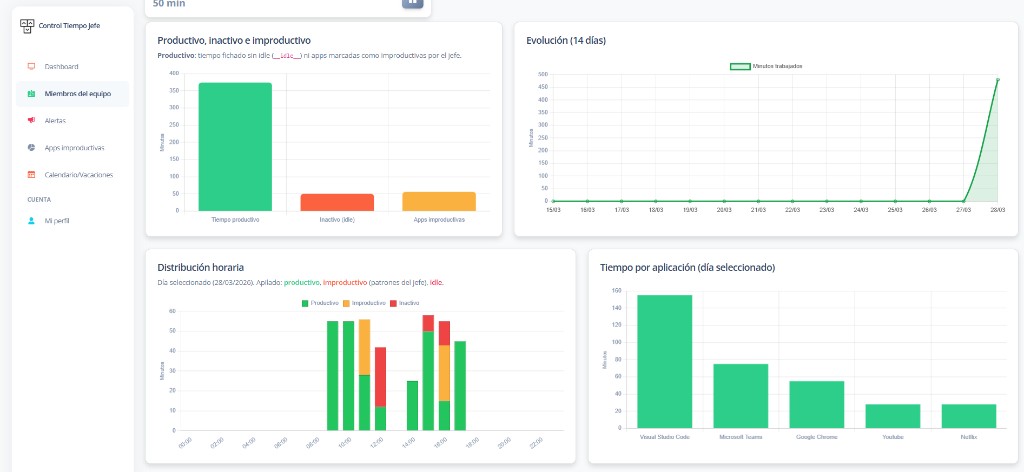
Check the start, finish and duration of working-time records, then open the employee activity detail. The Windows client supplies application activity and periods without interaction. A window title or URL can add context when the installed client supplies that information. Test the actual detail received from your devices before deciding how to use it.
Keep three questions separate: whether a time record was left open, when computer interaction stopped, and how long an application was used for a purpose classified as unproductive for that role. These situations need different checks.
Review a known working day step by step
Start with a day the employee and manager can reconstruct. Have the known meetings and work available so the computer records can be considered alongside what actually happened.
- Record the working day through the Windows client and check its start, finish and duration in the web dashboard.
- Open the individual employee detail and choose the day or date range to review.
- Locate inactive periods and compare their distribution with application time.
- Ask what took place during each interval, including calls, meetings, reading, breaks or work away from the screen.
- Agree a specific improvement and compare similar working days using a consistent review method.
Fictional example: eight recorded hours and one meeting
Imagine an eight-hour working-time record with one hour of inactivity and thirty minutes in uses classified as unproductive. The intervals do not overlap in this example. The effectiveness indicator would be (8 − 1 − 0.5) ÷ 8 × 100, or 81.25%. This is an illustrative calculation, not a customer result or a measurement of work quality.
The manager then finds that forty minutes of inactivity coincided with a meeting and twenty minutes with a break. The whole hour cannot simply be treated as lost work. Review the meeting, the completed work and the circumstances before deciding whether there is a problem to address.
Interpret differences between employees carefully
Compare roles and working days with similar requirements. A person handling calls, someone drafting documents and someone attending training may have different interaction patterns. Review the uses your business has classified as unproductive, too: the same application may serve a work purpose in one role and a different purpose in another.
The dashboard effectiveness percentage starts with recorded working time and subtracts inactivity and uses classified as unproductive. Use it to decide what to examine. Completed tasks, quality and business outcomes need their own review.
Test the workflow and check the offer for your team
Use the 14-day trial without a card to check a known Windows working day and the information received in the manager dashboard. You can also test a vacation request, the approval or rejection and the calendar. The current application interface is Spanish. Email support is available in your language through translated replies.
The published price is EUR 4 per employee per month, excluding applicable taxes. CSV exports contain employee time records: employee, date, start, finish and duration. They do not export the application or inactivity history. Email your team size, devices and an example of the review you need so the supported workflow can be checked.
Frequently asked questions
- Does idle time prove that an employee is not working?
- No. It indicates a lack of computer interaction and can coincide with work away from the screen. Review the circumstances of each interval.
- Can I review employees who work from home?
- You can review activity received from their Windows client. Test the workflow using the devices and connection your remote team actually uses.
- Does the CSV contain every inactive interval?
- The current export contains working-time records: employee, date, start, finish and duration. Review activity detail in the dashboard.
Explore related needs
Tell us what your team needs to manage
The button opens an email draft. Include your country, team size and work devices so we can assess the fit and setup terms.
Discuss your setup