 Control Laboral App
 · Windows + Web
Employee app and website tracking during recorded working hours
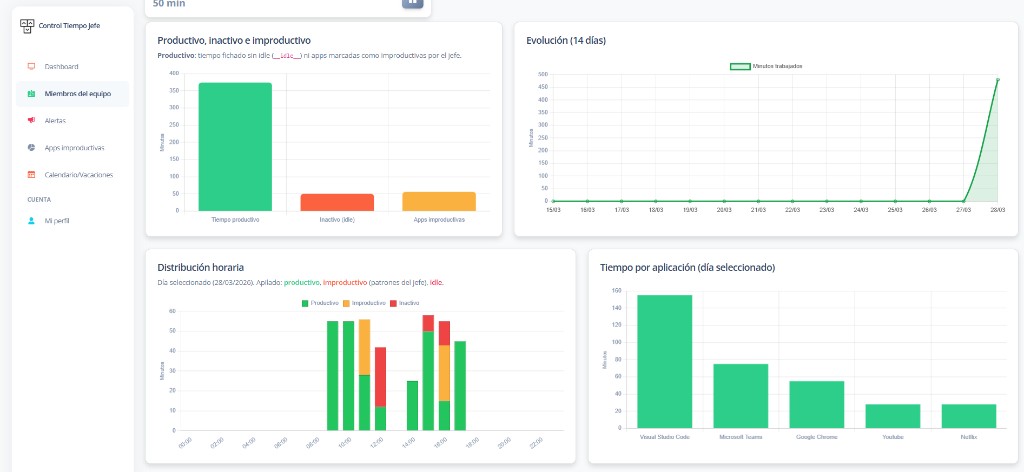
Recorded hours do not explain which tools occupy the working day. Control Laboral App lets managers review application time received from a Windows client and, when available, a window title or URL. The web dashboard brings that information together with working-time records and inactivity. Review uses classified as unproductive according to the work each role needs to do, rather than treating every employee or application in the same way.
EUR 4 per employee per month, excluding applicable taxes. 14-day trial without a card.
Email us in English and receive a reply in English. The current application interface is Spanish.
Understand the context behind an application name
Application time helps locate the tools that account for a working day. A browser can contain work email, training, business systems and personal browsing. The browser name alone cannot distinguish those uses. Review the window title or page information when the installed client supplies that detail.
Check which information is available in your actual setup. The service does not advertise access to full conversation content or universal detection of AI use. A title or URL provides context for received computer activity; it does not establish the result of the work.
A practical review workflow for managers
Before including the whole team, choose one Windows computer and a known working day. Test the same sequence the manager will use when reviewing the team.
- Record the working day in the Windows client and check the start, finish and duration in the web dashboard.
- Open the employee detail and select the dates you need to review.
- Check application time and any window titles or URLs that are available.
- Compare those uses with the role, known tasks, meetings and required tools.
- Review which uses should be classified as unproductive and keep the review method consistent across comparable days.
Fictional example: the same website in two different roles
A manager notices forty-five minutes on a video website. A review shows that one employee was attending agreed training while another was watching material unrelated to work. This fictional example illustrates why context matters; it does not represent customer records or results.
Applying the same classification to every use of the tool could distort the comparison. Agree which uses each team requires, examine the available detail and document how the review is performed. If only the browser name is available, acknowledge that limit before assigning the time to a particular website.
Read activity indicators alongside recorded hours
The dashboard effectiveness indicator starts with recorded working time and subtracts inactivity and uses classified as unproductive. An illustrative eight-hour day with one hour of inactivity and one separate hour of unproductive uses would show 75%. The percentage describes those records and their classification.
A change in the indicator can help start a discussion about tools or processes. To assess the work, review deliveries, errors, waiting time and meetings as well. The current service does not automatically allocate hours to clients or projects, or independently assess completed tasks.
Validate your team data during the trial
The trial lasts 14 days and does not require a card. Check which application details the dashboard receives from your Windows computers and whether managers can use the information for their intended review. The current application interface is Spanish. Email support is available in your language through translated replies.
The published price is EUR 4 per employee per month, excluding applicable taxes. You can export working-time CSV records containing employee, date, start, finish and duration; that file does not include application or website history. Vacation requests, manager decisions and the calendar are also available to test as part of the team workflow.
Frequently asked questions
- Can I see how long an application is used?
- The dashboard shows application time received from the Windows client. Check the detail recorded on your actual devices during the trial.
- Is the exact website always available?
- That detail is not guaranteed for every use. Window titles or URLs are available when supplied by the installed client. A browser name does not identify a specific page.
- Should an application be unproductive for everyone?
- The review needs to reflect the role and its work requirements. Check the classification with each team before interpreting its percentages.
Explore related needs
Tell us what your team needs to manage
The button opens an email draft. Include your country, team size and work devices so we can assess the fit and setup terms.
Discuss your setup